Observation Fields are user-created metadata fields that can be added to observations and used to capture information beyond the basic observation data of date, location, taxon observed, etc. Some examples include fields that capture a host species, a prey species, the number of individuals observed, habitat type, associated observations, among many more.
Anyone can create an Observation Field, and they are not closely regulated so there may be redundant fields or fields that are made for very niche use cases. Before creating a field, please make sure an existing field does not meet your needs.
TABLE OF CONTENTS
- How to add an Observation Field to an observation using the iNaturalist Website
- How to search for observations with specific Observation Fields and values
- How to incorporate Observation Fields into your Traditional Project
- Adding observations to Traditional Projects which use Observation Fields
- How to create an Observation Field
How to add an Observation Field to an observation using the iNaturalist Website
- Go to any observation's page.
- On the right-hand side, scroll down to Observation Fields. You may need to click on it to open (if it's collapsed). It will look like this:

- Search for an Observation Field by typing in the search box and selecting the field you want. For example, let's say you have a photo of a bee in a flower and you want to record which species of flower it's using for nectar, so you type in nectar plant and see these options.
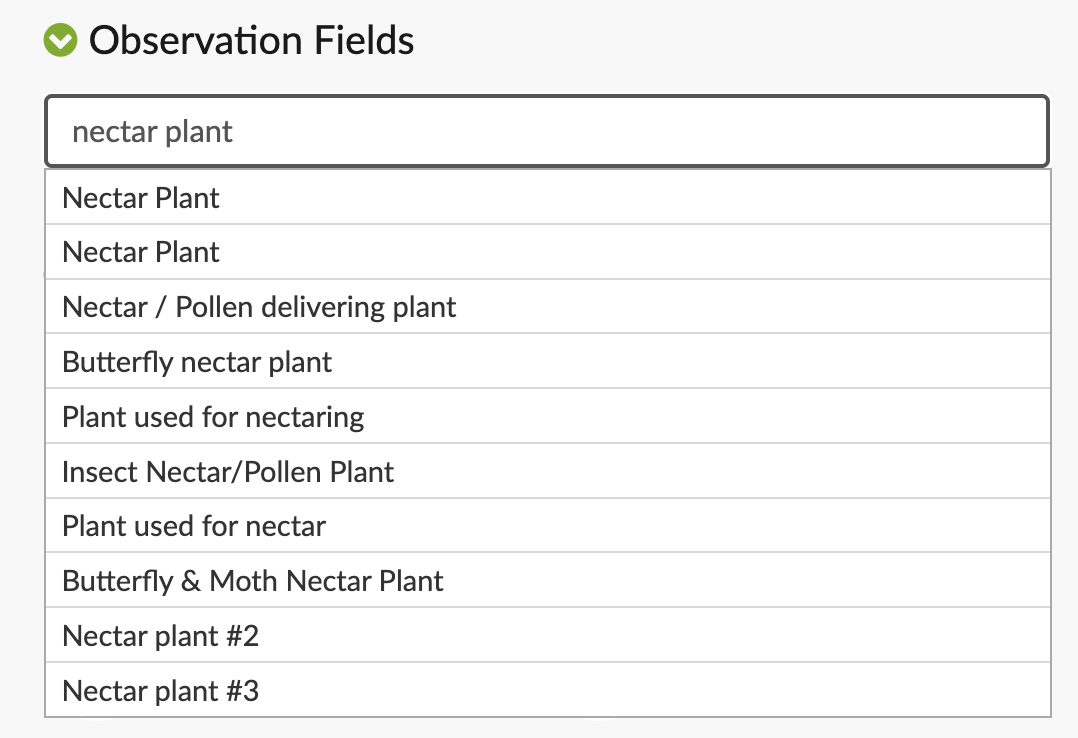
- The results are sorted by the most-used to least-used. Let's select the top choice here.
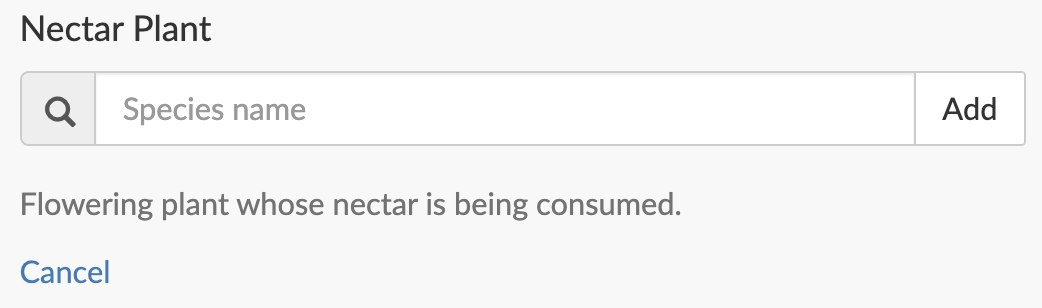
- The Observation Field's definition will be shown, in addition to a search box. Since this is a taxon field, you can search for a taxon and add it to the field. Or you can cancel if this field is not what you want.
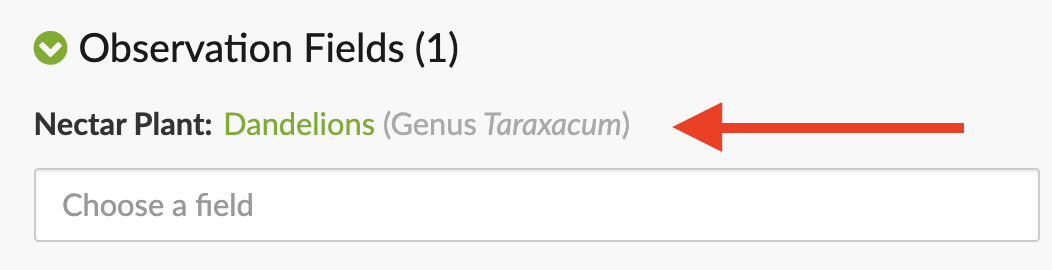
- Once you've added a taxon, the Field will be saved to the observation. You can leave it at that, or search for and add more Observation Fields. Note that by default the observer will be notified when someone adds an Observation Field to their observation.
How to search for observations with specific Observation Fields and values
There are a few ways you can search for observations with specific Observation Fields and even specific Observation Fields with a specific value. There are a few ways to do this.
On an Observation page
- Go to an observation to which the field in question has been added.
- Click on the title of the field (underlined below). You'll see a pop-up with View options at the bottom (red arrow).

- Clicking on any of the top three links there will take you to an Explore page filtered by your choice. For example, if you click on "Observations with this field and value" you will see observations that have a "Nectar Plant" Observation field the value of Taraxacum. Clicking on "Observation field details" will take you to the page of the Field. In this case, https://www.inaturalist.org/observation_fields/498.
From the Observation Fields page
- Go to https://www.inaturalist.org/observation_fields.
- Search for the field you're interested in and click on it.
- This will take you to the Field's page (for example, Nectar Plant), where you can see observations with the field, the field's definition, who created it, which projects use the field, and any comments added by the community.
- If you scroll to the bottom of the the observations list, you'll see a "View more search options" link. If you click on it, you'll be taken to an Explore page showing all observations with this Observation Field, regardless of field value. For Nectar Plant, it would be https://www.inaturalist.org/observations?field:nectar%2Bplant=
- You can use the various filters on the Explore page to refine your search.
How to incorporate Observation Fields into your Traditional Project
When it comes to projects, currently Observation Fields are only available for use with Traditional Projects. When you add an observation to a Traditional Project, iNaturalist will prompt you to fill out the Observation Fields used by your project. You can choose to require certain Observation Fields for your project, or make them optional
Add Observation Fields to a Traditional Project
- On the Edit page for your Traditional Project, scroll down to "Observation Fields" near the bottom.
- Search for the Observation Field you would like to add to the project, or create a new one. Please only create a new Field if existing ones do not suit your needs.
- When you have selected a Field, it will be added to the list. You can choose to have multiple Fields. Mouseover a field to drag and reorder the list of Fields.
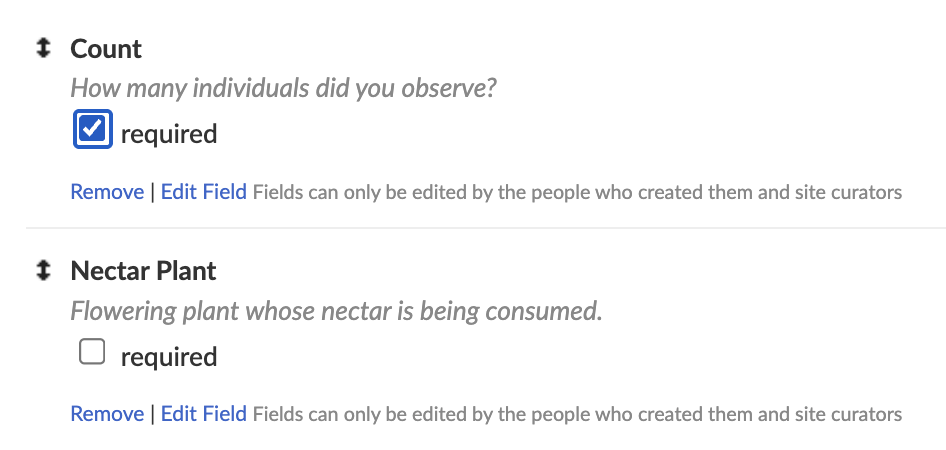
- Each field will look like this. Clicking the "required" checkbox means an observation must have that Field added to it before it can be included in your project. Leaving the checkbox blank means the user will be prompted to fill it out but it is optional. Clicking "Remove" will remove the Field from your project. Clicking "Edit" will allow you to edit the field if you have permission to do so.
- Save the project.
Adding observations to Traditional Projects which use Observation Fields
Here's what the Observation Fields prompt looks like on each iNaturalist platform you add an observation to a project that uses them.
Website
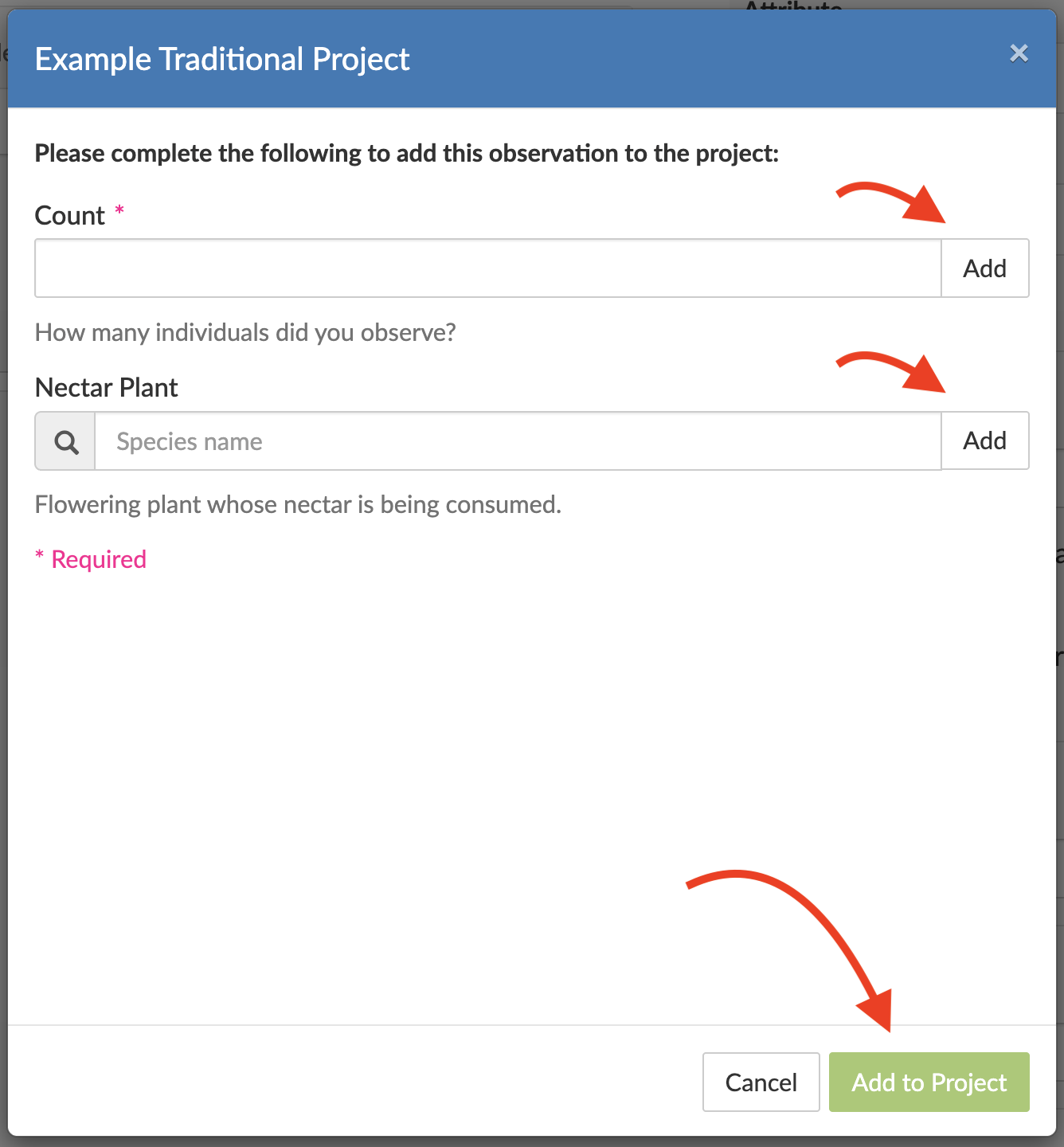
On the website, you will see a pop-up that shows all Observation Fields used by the project. Required fields will have a pink asterisk. In this case, "Count" is required, "Nectar Plant" is optional.
Fill out the fields you want to (or must) and click "Add" for each one. Once all required fields are added, the "Add the Project" button will become clickable. Click it to add the observation to the project.
iNaturalist Android App
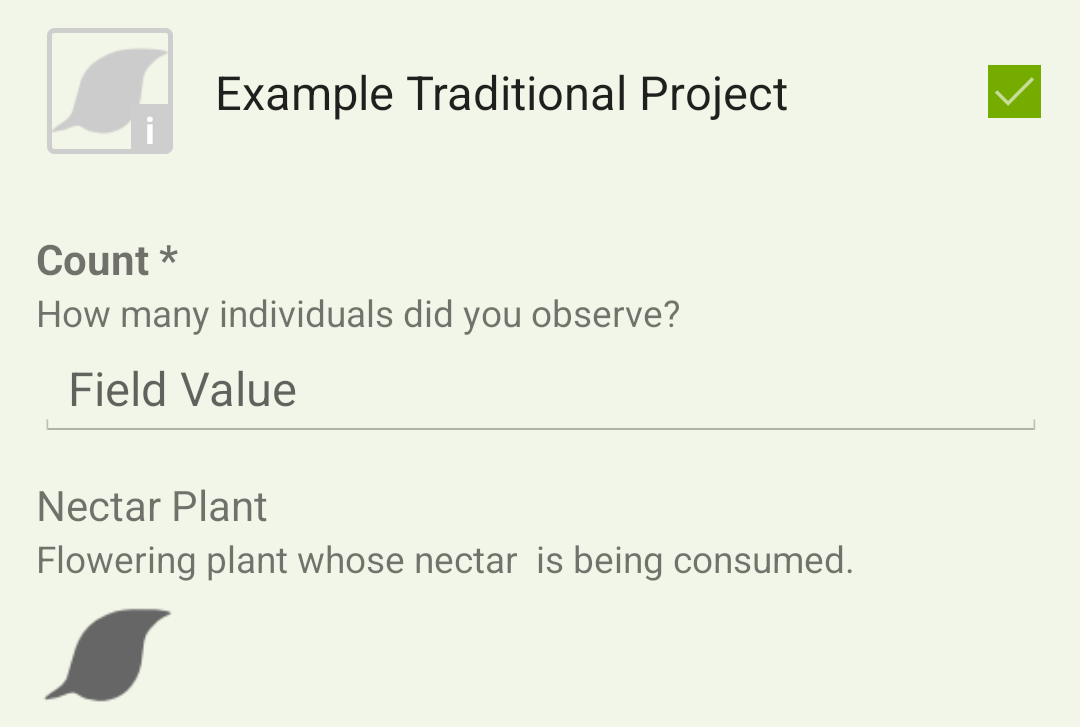
When adding an observation to a Traditional Project, the app will display all Observation Fields used by the project. Tap on each field to enter a value.
iNaturalist Classic App
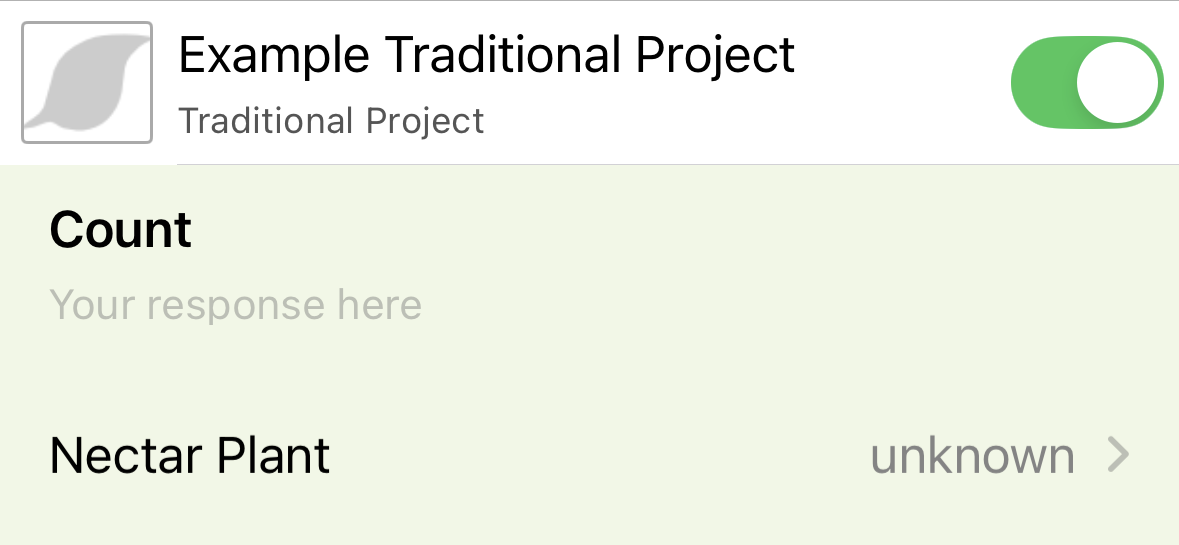
When adding an observation to a Traditional Project, the app will display all Observation Fields used by the project. Tap on each field to enter a value.
How to create an Observation Field
Any user can create an Observation Field, but to reduce and confusion and redundancy, please do not create a new Field if an existing one suits your purposes. Fields are generally not regulated but Fields that violate the iNaturalist Terms of Use and/or Community Guidelines will be removed.
To create an Observation Field:
- Go to https://www.inaturalist.org/observation_fields and search for any existing fields you might be able to use instead of creating a new one.
- If you need to create a new Field, click on "New Observation Field" near the bottom of the page, which will take you to https://www.inaturalist.org/observation_fields/new
- Choose a name for your field and add a description.
- Choose which Datatype you want to use.
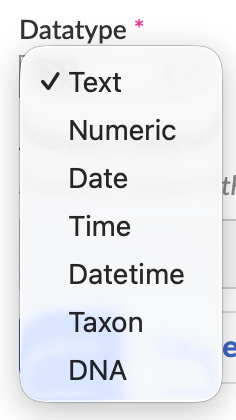
- If using the "Text" Datatype and you want to include a set list of values, separate each value with a pipe symbol, eg "yes|no|maybe".
- Click "Save".
Was this article helpful?
That’s Great!
Thank you for your feedback
Sorry! We couldn't be helpful
Thank you for your feedback
Feedback sent
We appreciate your effort and will try to fix the article