You can always change your account's email address or username.
Keep in mind that the new email address must be unique (not used by any other iNaturalist account), and that usernames must be unique, begin with a letter, contain no spaces, and use only letters, numbers, dashes, and underscores.
TABLE OF CONTENTS
Website
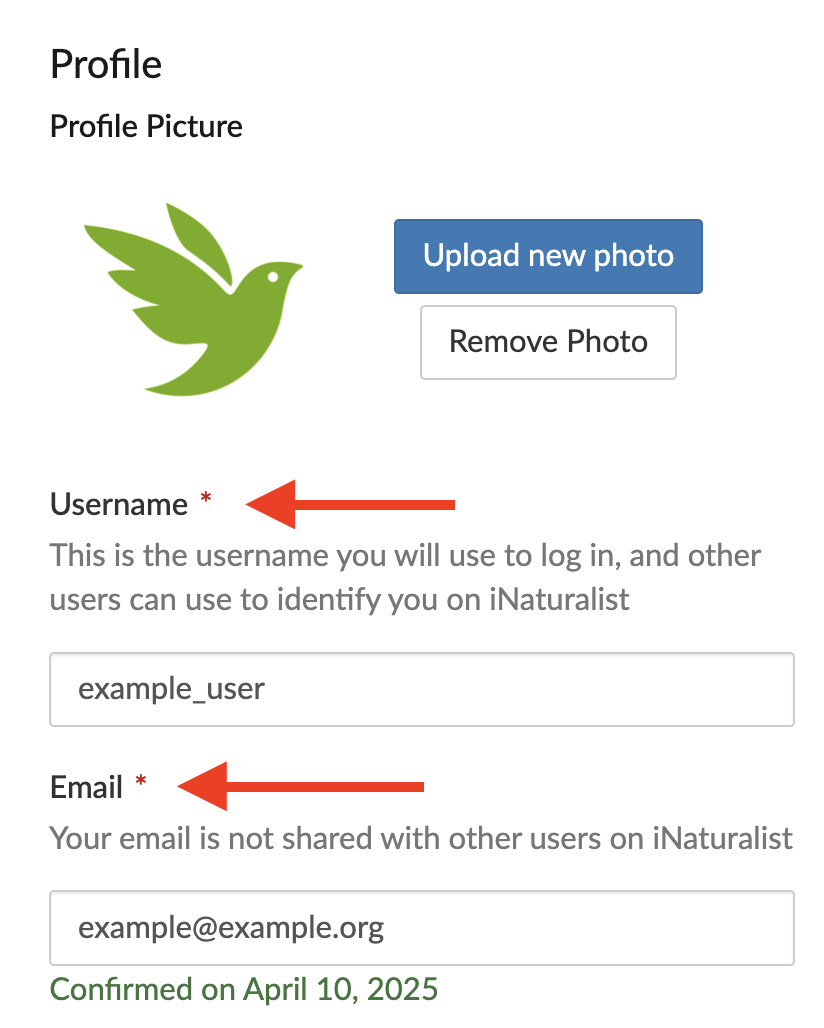
- Go to https://www.inaturalist.org/users/edit and log in if you are asked to. This will take you to your Account Settings.
- Edit the Username and/or Email Address fields
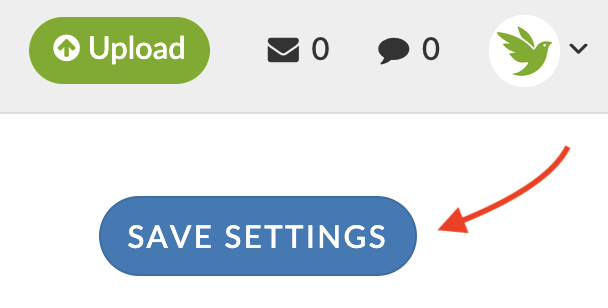
- Click on the blue "Save Settings" button to save any changes.
If you updated your email address, iNaturalist will send a confirmation email to that new address, with a link to click on to confirm it. iNaturalist will also send an email to the previous address, alerting it that the email address has been changed.
Android App
- In the side menu, tap on "Edit Profile".
- Edit the Username and/or Email Address fields.
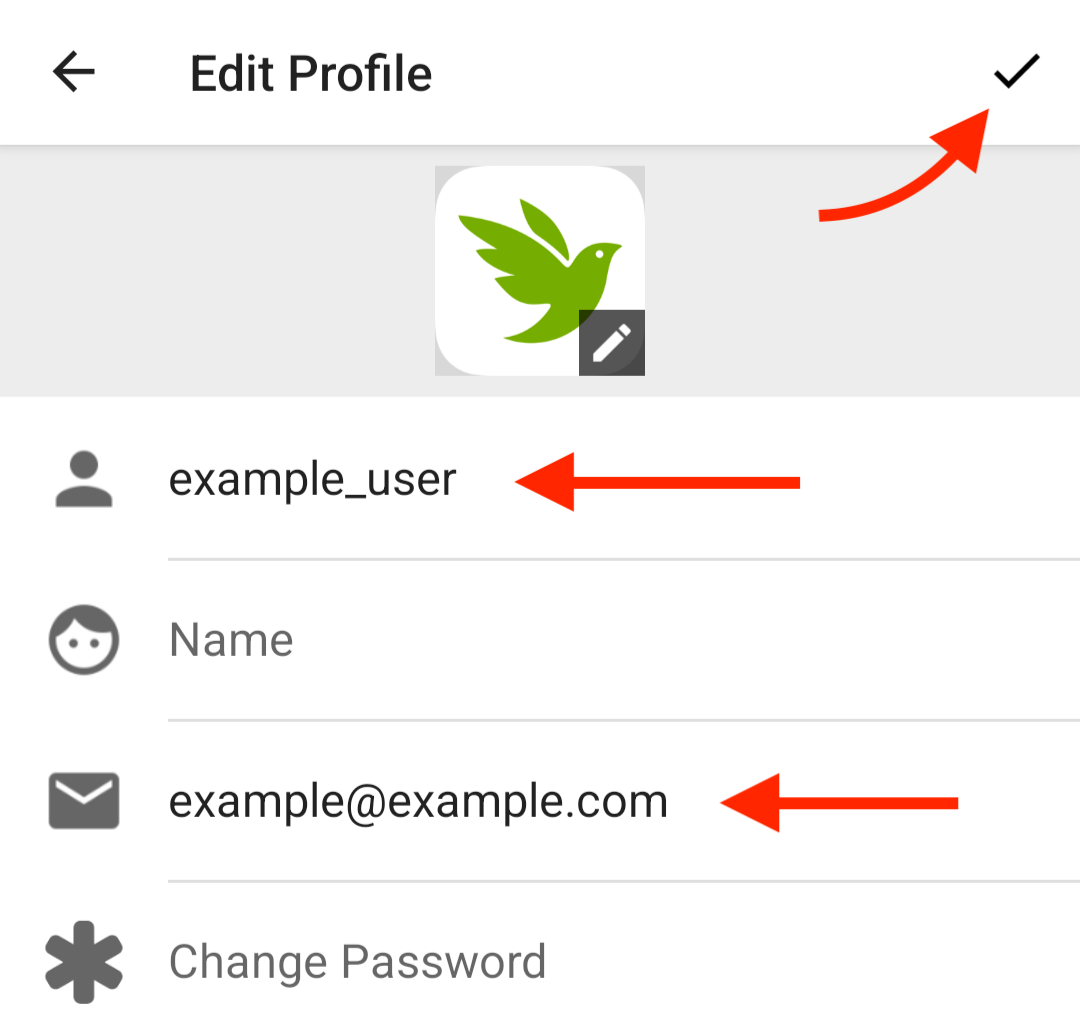
- Tap on the checkmark in the upper right-hand corner to save your new username and/or email address.
If you updated your email address, iNaturalist will send a confirmation email to that new address, with a link to click on to confirm it. iNaturalist will also send an email to the previous address, alerting it that the email address has been changed.
iNaturalist app for iPhones
- In the side menu, tap on Settings.
- Scroll to the bottom and tap on "Account Settings".
- Edit the Username and/or Email Address fields.
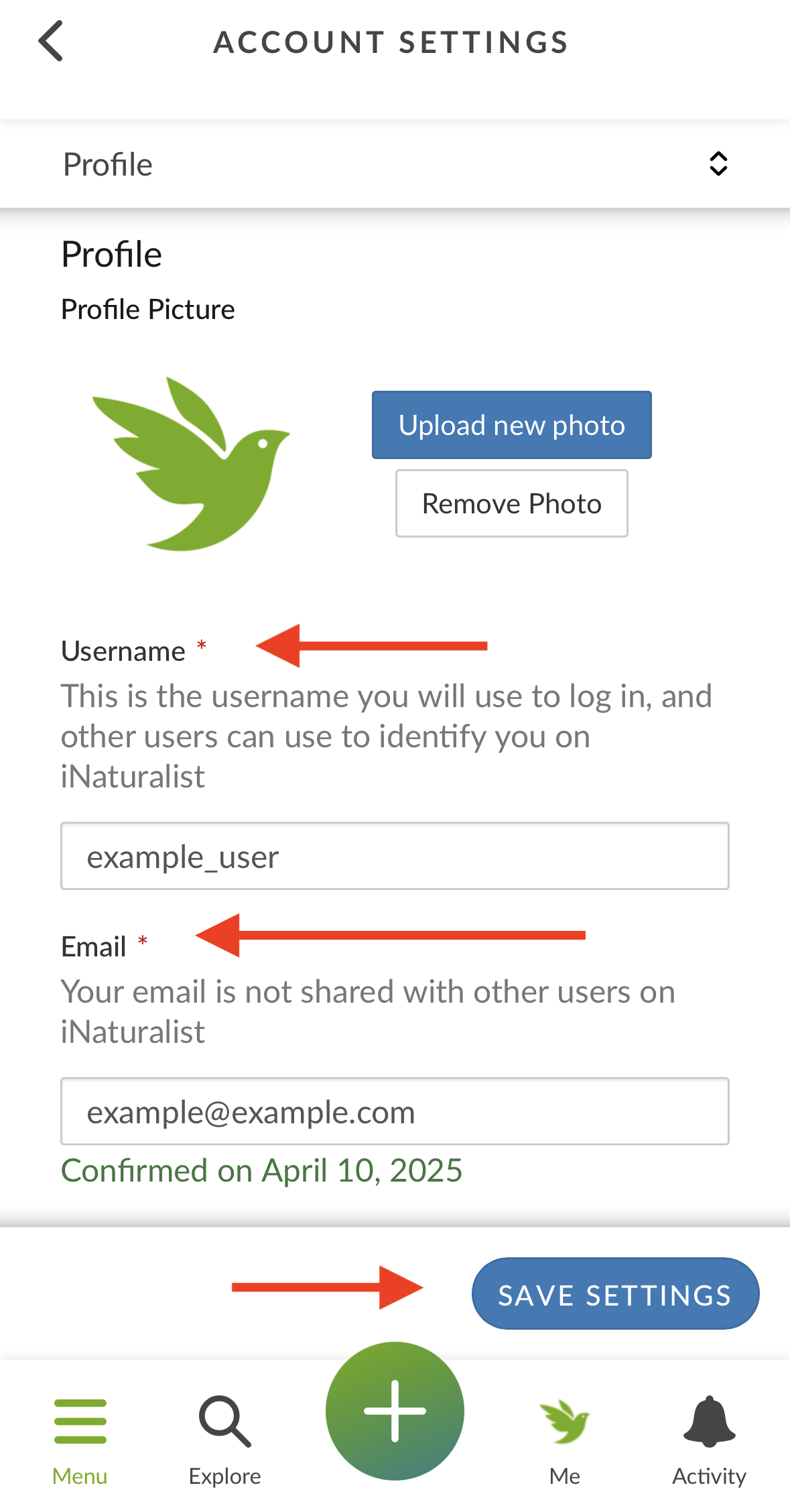
- Tap on the blue "Save Settings" button at the bottom.
If you updated your email address, iNaturalist will send a confirmation email to that new address, with a link to click on to confirm it. iNaturalist will also send an email to the previous address, alerting it that the email address has been changed.
iNaturalist Classic for iPhones and iPads
- Go to the Me tab in the app.
- Tap on the gear icon in the upper right-hand corner to access Settings.
- Tap on username or email address to change it.
If you updated your email address, iNaturalist will send a confirmation email to that new address, with a link to click on to confirm it. iNaturalist will also send an email to the previous address, alerting it that the email address has been changed.
Was this article helpful?
That’s Great!
Thank you for your feedback
Sorry! We couldn't be helpful
Thank you for your feedback
Feedback sent
We appreciate your effort and will try to fix the article